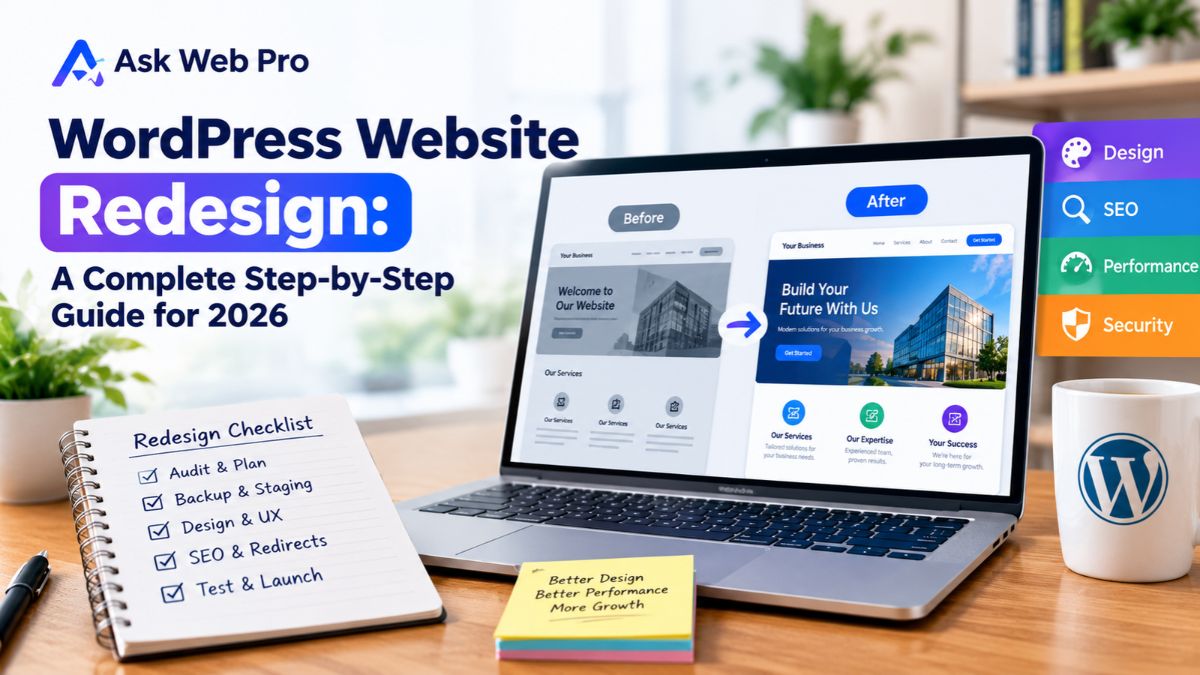
A website can work perfectly well today and still need a redesign tomorrow. Your business may have changed, your customers may expect a better mobile experience, or your existing WordPress website may simply no longer represent your brand.
A WordPress website redesign is more than changing colors, fonts, or images. A successful redesign can involve your website structure, content, navigation, performance, security, SEO, and the way visitors move toward an important action.
So, how do you redesign a WordPress website without creating unnecessary problems?
The safest approach is to plan the process before making major changes. This guide walks through the complete WordPress website redesign process, from auditing your existing site to testing the redesigned website after launch.
What Is a WordPress Website Redesign?
A WordPress website redesign means improving or rebuilding an existing WordPress website to better meet current business, user, and technical needs.
The scope can be relatively small or involve major changes.
Redesign vs. Minor Website Updates
Changing a few images or updating a phone number is not necessarily a redesign.
A redesign may involve:
- A new visual style
- Improved page layouts
- Better navigation
- A revised website structure
- Mobile UX improvements
- New or updated content
- Better calls to action
- Performance improvements
- SEO improvements
- New functionality
- Plugin or theme changes
The important point is that a redesign should solve real problems rather than simply make a website look different.
What a WordPress Redesign Can Include
Depending on the website, a redesign can cover everything from the homepage and service pages to forms, ecommerce features, integrations, and technical performance.
For example, a small business may mainly need a cleaner design, clearer services, better mobile usability, and stronger contact paths. An ecommerce website may require a much deeper review of product pages, checkout, payment functionality, customer accounts, and performance.
When Should You Redesign a WordPress Website?
There is no universal age at which a website needs to be redesigned.
Instead, look at how well the website currently serves your business and visitors.
Common signs that a redesign may be worth considering include:
- The design looks outdated.
- The website is difficult to use on mobile devices.
- Visitors struggle to find important information.
- Navigation has become confusing.
- The website loads slowly.
- Important content is outdated.
- Calls to action are unclear.
- The website no longer reflects your brand.
- Plugins or integrations are causing recurring problems.
- The current website structure makes future changes difficult.
- Your business has changed significantly since the website was built.
Does Every Old WordPress Website Need a Redesign?
Not necessarily.
A website can be several years old and still provide a good user experience, perform well, and support the business effectively.
Before deciding on a complete redesign, review the website’s actual condition. You may discover that targeted improvements are enough.
On the other hand, if design, content, usability, performance, and technical problems have accumulated over time, a more comprehensive redesign may make more sense.
Audit Your Existing Website Before Redesigning
One of the biggest mistakes during a website redesign is starting with the new design before understanding the old website.
An audit gives you a clearer picture of what should stay, what needs improvement, and what should be removed.
Review Your Website Structure
Create a list of your important pages and review how they are connected.
Check:
- Homepage
- About page
- Service pages
- Product pages
- Portfolio or case studies
- Blog posts
- Contact page
- Landing pages
- Navigation menus
- Categories and other important sections
Also review your existing URLs. Some URLs may already receive visitors, appear in search results, or have links from other websites.
Review Website Performance
Check how the website performs on both desktop and mobile devices.
Look for:
- Large images
- Unnecessary plugins
- Heavy scripts
- Slow page sections
- Layout problems
- Excessive third-party tools
- Poor mobile performance
Performance should be evaluated as part of the overall user experience rather than by chasing a perfect testing score.
Review SEO and Search Visibility
Before changing the website structure, understand what is already working.
Review:
- Indexed pages
- Important search pages
- Page titles
- Meta descriptions
- Internal links
- XML sitemap
- Canonical URLs
- Existing redirects
- Google Search Console data
This is especially important when a redesign will change page URLs or remove existing content.
Review Website Functionality
Make a list of everything that currently works behind the scenes.
Depending on the website, this could include:
- Contact forms
- Booking systems
- Newsletter forms
- Ecommerce
- Payment gateways
- Customer accounts
- Analytics
- Email integrations
- CRM integrations
- Membership features
- Custom functionality
A redesign should not accidentally remove a feature that the business depends on.
For ongoing checks after the redesign, a practical [WordPress website maintenance checklist] can also help you organize regular updates, backups, security, and performance reviews. WordPress website maintenance checklist
Create a Backup and Staging Website
Once you understand the existing website, prepare a safe environment for the redesign.
Create a Complete Website Backup
Before making major changes, create a reliable backup of the website.
Depending on your setup, this can include:
- WordPress files
- Database
- Media uploads
- Theme files
- Plugin configuration
- Other important website data
A backup is only useful if it can actually be accessed and restored when needed. For that reason, understand where your backups are stored and how restoration works.
Why You Should Use a Staging Website
A staging website is a separate working version where you can make and test changes before applying them to the live website.
This gives you a safer environment for:
- Testing a new theme
- Changing layouts
- Updating plugins
- Testing custom functionality
- Reviewing mobile layouts
- Checking forms
- Finding compatibility problems
For a business website, working directly on the live site can create unnecessary risk.
Don’t Redesign Directly on the Live Website
If possible, avoid making major redesign changes while visitors are using the production website.
A staging workflow allows you to build, test, review, and fix problems before visitors see the new version.
Plan Your New Website Structure
A redesign should begin with structure, not just visual design.
Before opening Elementor or changing your theme, decide what the new website needs to accomplish.
Decide Which Pages to Keep, Remove, or Add
Review every important page and classify it.
For example:
- Keep and improve
- Rewrite
- Combine with another page
- Remove
- Create a new page
Do not remove a page simply because it looks old. First check whether it receives search traffic, has useful backlinks, or serves an important customer journey.
Plan Your Navigation and User Journey
Visitors should be able to understand where to go next.
For a service-based business, a simple journey might look like:
Homepage → Service → Portfolio/Proof → Contact
For an ecommerce website, it may look more like:
Homepage → Category → Product → Cart → Checkout
The exact structure depends on the business, but the principle is the same: make important next steps easy to understand.
Review Your URLs Before Making Changes
URLs deserve special attention during a redesign.
If an existing page has a useful URL, keeping that URL can sometimes reduce unnecessary complications.
If URLs must change, create a clear redirect plan before launch. Do not wait until after the redesign is live to discover that important old URLs no longer work.
Review Your Content Before the Redesign
A new design cannot fix poor or outdated content.
Use the redesign as an opportunity to review what your visitors actually need.
Keep Useful Content
If a page provides valuable information and supports the business, keep it and improve it where necessary.
Update Outdated Content
Review:
- Services
- Prices
- Business information
- Contact details
- Team information
- Images
- Product descriptions
- Old promotions
- Statistics or references
- Calls to action
Outdated information can reduce trust even when the design looks professional.
Remove or Consolidate Weak Pages
Some websites accumulate multiple pages covering nearly the same topic.
Where appropriate, consider combining overlapping content into a stronger page instead of maintaining several thin or repetitive pages.
If a page needs to be removed or its URL changed, consider its SEO history and existing links before doing so.
Improve Calls to Action
Every important business page should make the next step reasonably clear.
Depending on the business, that could mean:
- Request a quote
- Book an appointment
- Contact the business
- View a service
- Buy a product
- Schedule a consultation
If you are planning a small business redesign, our Small business website checklist can help you review the essential pages, features, SEO, security, and lead-generation elements that a business website may need.
Improve Your Website Design and User Experience
The visual redesign is an important part of the process, but good design should support usability rather than compete with it.
Build a Clear Visual Hierarchy
Visitors should quickly understand:
- What the page is about
- What information is important
- What action they can take next
Use headings, spacing, typography, buttons, images, and layout to create a clear hierarchy.
Make Navigation Simple
Avoid making visitors work to find basic information.
Your navigation should make important sections easy to discover. On mobile devices, menus should remain simple and usable.
Design for Mobile First
A website may look excellent on a large desktop monitor but still provide a poor mobile experience.
Check:
- Text size
- Button sizes
- Navigation
- Images
- Forms
- Spacing
- Horizontal scrolling
- Page sections
- Touch interactions
Mobile testing should happen throughout the redesign process, not only after everything is finished.
Make Important Actions Easy to Find
A visitor should not have to search through several sections to find a contact option.
Place important calls to action where they make sense within the user’s journey.
Protect SEO During a WordPress Redesign
SEO protection should be part of the redesign plan from the beginning.
A website redesign can change URLs, content, headings, internal links, metadata, technical settings, and page structure. If these changes are handled carelessly, search visibility can be affected.
Keep Important URLs Where Possible
If an existing URL is useful and there is no strong reason to change it, keeping it can simplify the transition.
However, URL decisions should be based on the overall website structure rather than SEO alone.
Create Redirects for Changed URLs
When an important page moves to a new URL, a relevant redirect can help guide users and search engines from the old location to the new one.
Create a redirect map before launch.
A simple spreadsheet can include:
| Old URL | New URL | Redirect Needed |
|---|---|---|
| Old service page | New service page | Yes |
| Existing contact page | Same contact page | No |
| Old product URL | New product URL | Yes |
The exact implementation depends on your hosting and WordPress setup.
Preserve Important Content and Metadata
During the redesign, review important SEO elements such as:
- Page titles
- Meta descriptions
- Headings
- Internal links
- Image alt text
- Relevant page content
- Canonical URLs
Do not assume that moving content into a new design automatically preserves every SEO setting.
Check Canonical URLs and Sitemap
After the redesign, confirm that important pages have the correct canonical URLs and that the sitemap contains the URLs you actually want search engines to discover.
Test the Redesigned Site Before Search Engines Crawl It
If the redesigned website is being developed on staging, make sure search engine visibility settings are appropriate for that environment.
Before launching, check that the production website can be properly crawled and indexed.
Monitor Google Search Console After Launch
After launch, continue monitoring Google Search Console for:
- Indexing issues
- Crawl problems
- Unexpected URL changes
- Search performance changes
- Page-specific issues
A redesign should be treated as a process with post-launch monitoring, not as a single moment when the new design goes live.
Review Plugins, Themes, and Integrations
A redesign is also a good opportunity to clean up the technical side of WordPress.
Remove Unnecessary Plugins
Review every installed plugin and ask:
- Is it still being used?
- Is another plugin already providing the same function?
- Is the feature still needed?
- Is the plugin maintained?
- Could the website work without it?
Do not remove a plugin simply because its name looks unfamiliar. First understand what it does and whether the website depends on it.
Check Theme and Plugin Compatibility
If you are changing themes or making significant Elementor changes, test important functionality afterward.
Pay particular attention to:
- Forms
- Menus
- Templates
- Custom post types
- Ecommerce
- User accounts
- Third-party integrations
Review Third-Party Integrations
External services can easily be overlooked during a redesign.
Check analytics, email marketing, chat tools, booking platforms, payment systems, CRM connections, and other integrations that your website uses.
Make sure tracking and data flows continue to work after launch.
Avoid Adding Plugins Just for Small Design Changes
Every additional plugin can introduce another dependency.
When a simple design adjustment can be handled safely through your existing setup, adding another plugin may not be necessary.
The goal is not to have as few plugins as possible. The goal is to have a sensible, maintainable WordPress setup.
Optimize Website Performance
A redesign should not make the website heavier without a good reason.
Optimize Images
Use appropriately sized images and compress them before or during upload.
Avoid using a large image when a much smaller file can provide the same visual result.
Review Fonts and External Resources
Fonts, analytics, advertising tools, chat widgets, tracking scripts, and other external resources can affect loading.
Review whether every external resource is still necessary.
Limit Unnecessary Scripts and Widgets
Animations, sliders, widgets, tracking tools, and third-party elements can add complexity.
Use them when they improve the experience, not simply because they are available.
Test Mobile Performance
Test important pages on mobile devices and look beyond the initial loading time.
Check whether visitors can:
- Read the content comfortably
- Navigate easily
- Use buttons
- Complete forms
- View images properly
- Scroll without layout problems
Test Everything Before Launch
Before moving the redesigned website to production, perform a structured quality check.
Test Navigation and Links
Click through the main navigation and important internal links.
Check:
- Header menu
- Footer links
- Buttons
- Service pages
- Blog links
- Breadcrumbs if used
- Important external links
Test Forms and Emails
Submit every important form.
Confirm that:
- The form submits successfully
- The visitor receives the expected confirmation
- The business receives the notification
- Email delivery works correctly
Test Mobile and Desktop Layouts
Review the website at different screen sizes.
Look for:
- Overlapping elements
- Cut-off text
- Incorrect spacing
- Broken menus
- Images extending beyond the screen
- Buttons that are difficult to tap
Test Important Business Features
For ecommerce websites, test:
- Product pages
- Add to cart
- Cart
- Checkout
- Payment
- Confirmation emails
For service websites, test:
- Contact forms
- Quote requests
- Booking functionality
- CTA buttons
- Email notifications
Check SEO and Indexing Settings
Before launch, check:
- SEO titles
- Meta descriptions
- Canonical URLs
- Robots settings
- Sitemap
- Redirects
- Internal links
Check Different Browsers and Devices
A website that works in one browser is not automatically guaranteed to work everywhere.
Test important pages using the browsers and devices relevant to your audience.
WordPress Website Redesign Launch Checklist
Use this checklist before launching your redesigned website:
- Full website backup completed
- Staging version tested
- Navigation checked
- Important URLs reviewed
- Redirects configured where necessary
- Forms tested
- Email notifications tested
- Mobile layout checked
- Desktop layout checked
- Images optimized
- Plugins reviewed
- Theme and integrations tested
- SEO metadata checked
- Canonical URLs checked
- Sitemap checked
- Analytics and tracking tested
- Important CTA paths tested
- Content proofread
- Live launch plan prepared
What to Check After the Redesign
Launching the new website is not the end of the redesign process.
Check the Live Website
Visit the live website as a normal visitor.
Test the homepage, navigation, important pages, forms, buttons, and other critical functions again.
Monitor Search Console
Look for unexpected indexing or crawling problems after the new website is live.
If URLs changed, pay particular attention to redirect and indexing behavior.
Monitor Forms and Conversions
A redesigned website can look perfect while an important form or conversion path is broken.
Continue testing your key business actions after launch.
Watch Website Performance
Compare important pages before and after the redesign where practical.
If performance has become worse, investigate the cause rather than assuming the new design is automatically better.
Fix Small Problems Quickly
Not every issue will be discovered before launch.
Keep a list of post-launch improvements and address important problems first.
Regular maintenance can then help keep the redesigned website secure, functional, and up to date over time.
DIY WordPress Redesign vs. Hiring a Professional
A WordPress redesign does not always require a professional developer.
The right choice depends on the website and your experience.
When DIY Redesign Makes Sense
A DIY redesign may be reasonable when:
- The website is relatively small
- The functionality is simple
- You are comfortable with WordPress
- There are few integrations
- The website is not highly dependent on search traffic
- You have enough time for testing and troubleshooting
When Professional Help Makes More Sense
Professional help becomes more valuable when the website includes:
- WooCommerce
- Custom functionality
- Complex integrations
- Large amounts of content
- Significant search traffic
- Membership functionality
- Business-critical forms
- Recurring technical problems
The biggest benefit is not simply having someone change the design. It is having someone consider the design, functionality, performance, SEO, and technical risks together.
What a Professional WordPress Redesign Service Can Include
Depending on the project, a professional redesign can include:
- Website audit
- New page structure
- Custom WordPress design
- Elementor development
- Responsive optimization
- Content restructuring
- SEO protection
- Plugin cleanup
- Performance improvements
- Form and integration testing
- Redirect planning
- Launch support
If your existing website needs a more comprehensive update, you can explore our WordPress website design and development services to see how a professional redesign can fit into a broader website improvement project.
Frequently Asked Questions
How often should a WordPress website be redesigned?
There is no fixed redesign schedule.
A website should be redesigned when its design, user experience, content, performance, technology, or business goals no longer meet current needs. Regular maintenance and smaller improvements may also extend the useful life of a website.
Can I redesign my WordPress website without changing the domain?
Yes.
A website redesign does not require a domain change. You can redesign the existing WordPress website while keeping the same domain and, where appropriate, the same URLs.
Will a WordPress redesign hurt SEO?
It can if important SEO elements are changed or removed without proper planning.
URL changes, missing redirects, deleted content, incorrect indexing settings, broken internal links, and lost metadata can all create problems. A carefully planned redesign can reduce these risks.
Should I redesign my website on a staging site?
For most significant redesigns, using a staging environment is a safer approach.
It allows you to make changes and test important functionality without disrupting the live website.
How long does a WordPress website redesign take?
There is no single timeline that applies to every project.
The time required depends on the number of pages, design complexity, content requirements, ecommerce or custom functionality, integrations, revisions, and testing requirements.
How much does a WordPress website redesign cost?
The cost depends on the scope of the redesign.
Factors can include the number of pages, design complexity, content work, ecommerce functionality, custom development, integrations, SEO requirements, and ongoing support.
If you are comparing website project costs, this guide on How much a WordPress website costs provides a broader look at the factors that can influence WordPress website pricing.
Conclusion
A successful WordPress website redesign is not simply about making an old website look newer.
The process should begin with an audit of your existing website and continue through planning, content review, design, development, SEO protection, performance optimization, testing, and post-launch monitoring.
Before making major changes, create a reliable backup and, when possible, work on a staging website. Review your URLs and important content before changing the structure. Test forms, navigation, mobile layouts, integrations, and SEO settings before launch.
Most importantly, redesign around the needs of your visitors and your business rather than following design trends alone.
If your website needs more than a visual refresh and you want help planning or rebuilding it, you can Contact Ask Web Pro to discuss your WordPress website redesign project.