
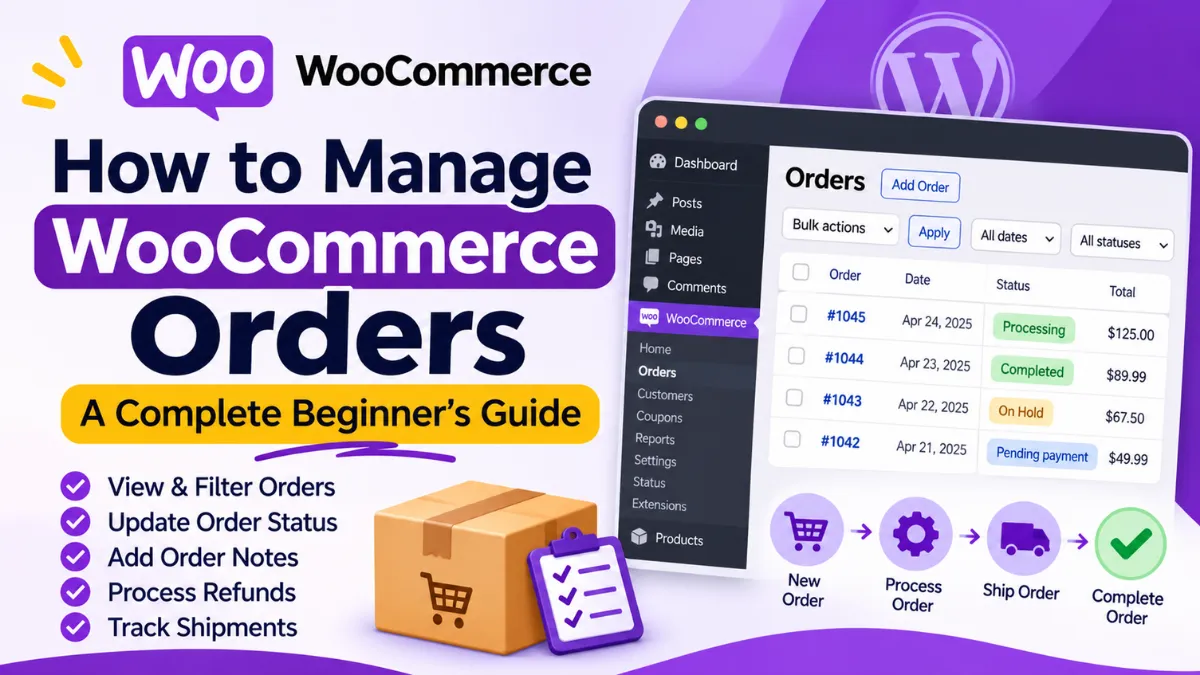
Managing customer orders is an important part of running a WooCommerce store. After a customer completes checkout, you need to review the order, confirm payment, prepare the products, arrange delivery, and keep the customer informed.
WooCommerce provides built-in tools to handle these tasks from your WordPress dashboard. You can search for orders, update their statuses, edit order details, add notes, and manage multiple orders at once.
In this guide, you will learn how to manage WooCommerce orders step by step. You will also discover how to track shipments, send order details to customers, create manual orders, and extend the default order management features when your store needs more control.
What Is WooCommerce Order Management?
WooCommerce order management is the process of handling customer purchases from the moment an order is placed until it is fulfilled, cancelled, or refunded.
A typical order management workflow includes:
- Reviewing new customer orders
- Checking payment information
- Updating order statuses
- Preparing and shipping products
- Sending order updates to customers
- Handling cancellations and refunds
- Keeping order records organized
WooCommerce includes many of these features by default. You do not need an additional plugin to perform basic order management.
However, larger stores may need extra tools for shipment tracking, custom order statuses, bulk editing, or automated workflows.
1. Where to Find Orders in WooCommerce
You can manage your store’s orders directly from the WordPress dashboard.
Follow these steps:
- Log in to your WordPress admin dashboard.
- Navigate to WooCommerce → Orders.
- You will see a list of orders placed in your store.
- Select an order number or customer name to open its details.
The Orders screen displays important information about each purchase.
Depending on your settings and installed extensions, you may see:
- Order: The order number and customer name.
- Date: When the order was created.
- Status: The current order status.
- Total: The order’s total amount.
- Billing: The customer’s billing information.
- Ship to: The delivery address.
Search and Filter Orders
Finding a particular order becomes easier when your store receives many purchases.
WooCommerce allows you to search using an order number, customer name, or other information available in the order list.
You can also filter orders by date, customer, or status.
For example, if you want to review orders that are waiting for fulfillment, select the Processing status filter.
Customize the Orders Screen
You can choose which columns appear in your Orders table.
- Open WooCommerce → Orders.
- Select Screen Options in the upper-right corner.
- Choose the columns you want to display.
- Adjust the number of orders shown per page if needed.
- Select Apply.
This makes it easier to review the information that matters most to your daily workflow.
2. Understanding WooCommerce Order Statuses
Every WooCommerce order has a status. It tells you what is happening with a customer’s purchase and what action may be needed next.
Here are the main order statuses you should understand.
| Order Status | What It Means |
|---|---|
| Pending payment | The order has been received, but payment has not been completed. |
| Processing | Payment has been received, and the order is waiting for fulfillment. |
| On hold | The order is waiting for payment confirmation. |
| Completed | The order has been fulfilled. |
| Cancelled | The order has been cancelled by the customer or store manager. |
| Refunded | The order has been fully refunded in WooCommerce. |
| Failed | The payment failed or was declined. |
WooCommerce may also use a Draft status during the block-based checkout process. It represents a temporary checkout record rather than a submitted customer order.
Pending Payment
This status usually appears when a customer places an order but does not complete payment.
For example, a customer may leave the payment page before finishing the transaction.
Check the payment details before taking further action.
Processing
Processing means WooCommerce has received payment and reduced the relevant stock quantity.
The order is now waiting for fulfillment. You can prepare the products, pack them, and arrange delivery.
Once the order has been fulfilled, you can change its status to Completed.
On Hold
An order may move to On hold when WooCommerce is waiting for payment confirmation.
This commonly happens with offline payment methods, such as bank transfers.
Do not treat every On hold order as a confirmed payment. Check the payment details or order notes before processing it.
Completed
Use Completed when the order has been fulfilled.
For a physical product, this generally means the store has completed its fulfillment process. For virtual or downloadable products, WooCommerce may move an order directly to Completed after successful payment.
Cancelled
An order can be cancelled by a customer or a store manager.
However, cancelling an order does not automatically mean the customer has received a refund. Check the payment records and refund the payment separately when necessary.
Refunded
This status indicates that the order has been fully refunded in WooCommerce.
Keep in mind that a manual refund records the refund in WooCommerce but does not automatically return money through the payment provider. You must complete the actual refund through the appropriate payment method.
Failed
A Failed order usually means the payment was declined or unsuccessful.
Review the payment gateway information and order notes to understand what happened. If the customer still wants to purchase the products, they may need to try the payment again.
3. How to Process a WooCommerce Order
Processing an order correctly helps prevent payment mistakes, shipping delays, and customer complaints.
Here is a practical workflow for handling a new order.
Step 1: Open the New Order
Go to WooCommerce → Orders and find the order you want to process.
Select the order number to open its details.
Step 2: Review Customer Information
Check the customer’s:
- Name and email address
- Billing address
- Shipping address
- Phone number
- Customer-provided order note
Make sure the shipping information is complete and accurate before dispatching the products.
Step 3: Verify the Payment
Review the payment method, transaction details, and order notes.
For online payments, check whether the payment gateway has confirmed the transaction.
For offline payments, such as bank transfers, verify that the money has arrived before preparing the order.
Step 4: Prepare the Products
Review the ordered products, quantities, and shipping method.
Then prepare the items for packing and delivery.
If you need to update an order’s products or other details, check the order’s current status first. WooCommerce restricts editing certain order details once an order has moved into Processing or a later status.
Step 5: Update the Order Status
After confirming payment, WooCommerce will generally place the order in Processing when fulfillment is required.
Once you have completed the fulfillment process, change the status to Completed.
To update the status:
- Open the order.
- Find the Status dropdown in the Order Details panel.
- Select the appropriate status.
- Save or update the order.
Use the correct status for each stage. Do not mark an order as Completed simply because payment has been received.
4. How to Edit WooCommerce Order Details
Sometimes a customer provides incorrect information or requests a change after placing an order.
WooCommerce allows you to edit several order details from the single order page.
You can update information such as:
- Customer details
- Billing address
- Shipping address
- Email address and phone number
- Product quantities and prices
- Shipping costs
- Fees and taxes
- Coupons
To edit an order:
- Go to WooCommerce → Orders.
- Open the order you want to change.
- Find the relevant information panel.
- Select the pencil icon or editing option.
- Make the necessary changes.
- Select Update in the Order actions panel.
Important: WooCommerce generally allows changes to order items, shipping, coupons, and fees while an order is Pending payment or On hold. These details are not freely editable after the order reaches Processing or a later status.
If a paid order needs additional products, creating a separate order may be more appropriate. Review the payment and order records before making changes.
5. How to Add Order Notes in WooCommerce
Order notes help you keep a record of important events and communicate with customers.
WooCommerce supports different types of notes.
System Notes
WooCommerce or an installed extension adds these notes automatically.
They may record payment results, stock changes, status updates, or other order events.
Private Notes
Private notes are visible to store administrators and authorized staff, not customers.
For example, you can add a note such as:
“Customer requested delivery after 5 PM. Confirm with the courier before dispatch.”
Customer Notes
Customer notes are intended for communication with the buyer.
When you add a note and choose the customer-facing option, WooCommerce sends it by email. The note can also appear in the customer’s account order details.
How to Add an Order Note
- Open the relevant order.
- Find the Order Notes panel.
- Enter your message.
- Choose Private note or Note to customer.
- Select the appropriate Add or Send option.
Always check the visibility setting before sending a note. You do not want to share internal store information with a customer by mistake.
6. How to Send Order Details to a Customer
Sometimes a customer needs another copy of their order information.
For example, they may have lost the original confirmation email or need an invoice for their records.
WooCommerce provides order actions that can help you send order details.
Follow these steps:
- Open WooCommerce → Orders.
- Select the relevant order.
- Find the Order actions panel.
- Choose the available option for sending order details or the customer invoice.
- Run the selected action.
The exact options can depend on your WooCommerce version and store setup.
You should also check your WooCommerce email settings if customers are not receiving order notifications.
7. How to Track WooCommerce Orders
Order tracking helps customers understand where their purchases are and when they may arrive.
However, WooCommerce’s default order statuses do not provide a complete courier tracking system.
For example, changing an order to Completed does not automatically create a tracking number or a courier tracking link.
To share shipment information, you need a compatible tracking extension or shipping integration.
A typical shipment tracking workflow includes:
- Open the relevant order.
- Add the shipping provider.
- Enter the tracking number.
- Add or confirm the tracking link and shipping date.
- Save the tracking information.
- Send the tracking details to the customer through the supported email or account feature.
WooCommerce’s Shipment Tracking extension can display tracking details in customer emails and the My Account area.
Does WooCommerce Have a Shipped Order Status?
The standard WooCommerce order statuses do not include a separate Shipped status by default.
If you want to show that an order has left your warehouse but has not yet been delivered, you may need a shipment tracking extension or a custom order status solution.
Choose a solution that matches your courier service and fulfillment process.
8. How to Manage Multiple WooCommerce Orders at Once
Managing every order individually can take time when your store receives many purchases.
WooCommerce includes a Bulk Actions feature that helps you update several orders together.
To use it:
- Navigate to WooCommerce → Orders.
- Select the checkboxes beside the orders you want to manage.
- Open the Bulk actions dropdown.
- Choose an available action.
- Select Apply.
The default Orders screen supports bulk actions such as changing selected orders to Processing, On hold, Completed, or Cancelled.
You can also move selected orders to the Trash. Additional actions may appear when compatible extensions are installed.
Tip: Review the selected orders carefully before applying a bulk status change. Updating the wrong orders can create confusion for your fulfillment process.
9. How to Create a Manual WooCommerce Order
You may sometimes need to create an order on behalf of a customer.
For example, a customer may place an order by phone, email, or another sales channel.
WooCommerce allows administrators and shop managers to create orders manually.
Follow these steps:
- Go to WooCommerce → Orders.
- Select Add Order.
- Choose an existing customer or assign the order to a guest.
- Add the required products.
- Enter the billing and shipping details.
- Add shipping costs, fees, or taxes if needed.
- Select the appropriate order status.
- Save the order.
If payment is still required, you can use the available customer payment or invoice options to send the customer a payment link.
Always verify the order total and customer information before sending payment details.
10. How to Manage WooCommerce Orders from a Mobile App
You do not always need to open your computer to check store orders.
The official Woo mobile app allows store owners to view and manage orders from a mobile device.
Depending on the app version and connected store, you can:
- View recent orders
- Search for specific orders
- Filter orders by status or date
- Review customer and payment details
- Update order statuses
- Create or edit orders
You can also enable supported push notifications to receive alerts about new orders.
To get started, install the official Woo app and connect it to your WooCommerce store. Check the app’s current requirements and connection instructions before relying on it for daily order management.
11. How to Download or Export WooCommerce Orders
Exporting orders can help with accounting, reporting, fulfillment, and record keeping.
However, the default WooCommerce Orders screen does not provide every type of bulk CSV or Excel export feature.
If you need to download many orders, you may need an order export extension or a compatible export plugin.
Before choosing one, check whether it supports:
- CSV or Excel-compatible exports
- Filtering by order date and status
- Exporting selected orders
- Customer and product information
- Custom order fields
- Scheduled exports, if required
For example, WooCommerce offers a Customer / Order / Coupon Export extension that supports CSV and XML exports.
Choose an export method that matches the information you need. Avoid exporting unnecessary customer data, and store downloaded files securely.
12. How to Add Custom Order Statuses in WooCommerce
The default order statuses work well for many small stores.
However, some businesses need additional stages to describe their fulfillment process.
For example:
- Packed
- Ready for Pickup
- Shipped
- Partially Shipped
- Awaiting Courier
- Delivered
These are not all standard WooCommerce statuses.
You can add custom statuses using a compatible order status plugin or custom development.
Before choosing a plugin, check whether it supports:
- Custom status labels
- Status colors and icons
- Bulk status updates
- Customer email notifications
- Compatibility with your WooCommerce version
- Compatibility with your other store extensions
A custom status should make your workflow clearer. Avoid creating too many statuses that confuse customers or store staff.
Can You Change Order Status Automatically with a WooCommerce Hook?
Yes. Developers can use WooCommerce action hooks to run custom functionality when an order status changes.
One useful action is:
woocommerce_order_status_changed
It provides information about the order and its status transition. A developer can use it to trigger a custom notification, connect an external service, or run another workflow.
This is an advanced customization. If you are not comfortable working with PHP, ask a WooCommerce developer to implement and test it safely.
13. Common WooCommerce Order Management Problems
Even when your store is configured correctly, you may occasionally face order-related issues.
Here are some common problems and the first things to check.
Order Stuck on Pending Payment
A Pending payment order usually means payment has not been confirmed.
Check the customer’s payment attempt, gateway response, and order notes. If the customer used an offline payment method, ask for confirmation and verify the funds before processing the order.
Order Stuck on Processing
Processing means payment has been received and fulfillment is still required.
If an order remains in this status after dispatch, review your fulfillment process. You may need to update the status manually or configure a compatible shipping integration.
Customer Did Not Receive Order Details
First, confirm that the customer’s email address is correct.
Then check whether the relevant WooCommerce email notification is enabled. Review your site’s email delivery configuration and logs if messages are not being delivered.
Shipment Tracking Information Is Missing
Check whether the tracking extension is active and whether the tracking number was saved correctly.
Also review its email and customer account display settings. Some tracking solutions send a separate email, while others add tracking details to an existing order notification.
Refund Status Updated but Customer Has Not Received the Money
A manual refund in WooCommerce does not necessarily return money through the original payment method.
Check the payment gateway and complete the refund through the appropriate process. Keep the customer informed until the refund is confirmed.
14. Best Practices for Managing WooCommerce Orders
A consistent order management process can reduce mistakes and improve customer communication.
Follow these practical habits:
- Review new orders regularly: Check incoming orders so they do not remain unattended.
- Verify payments: Confirm payment before preparing orders.
- Check customer details: Review addresses and contact information before dispatch.
- Use the correct statuses: Update orders when their actual fulfillment stage changes.
- Keep useful order notes: Record important customer requests and internal updates.
- Share tracking information: Give customers a clear way to follow their shipments.
- Review refunds carefully: Confirm that the actual payment refund has been completed.
- Protect customer information: Give staff only the access they need and handle exported data securely.
- Test important changes: Check order emails, payment gateways, shipping integrations, and custom statuses after making changes.
A clear process helps you manage orders more consistently, even as your store grows.
Frequently Asked Questions
How do I manage WooCommerce orders for free?
You can handle basic order management with the free core WooCommerce plugin. It includes order viewing, searching, filtering, status updates, order notes, manual orders, and bulk status actions. Extra features may require paid or free extensions.
Can I manage WooCommerce orders from my phone?
Yes. The official Woo mobile app lets you view, search, filter, and manage orders from a supported mobile device. Available features depend on the app version and store setup.
How do I change an order status in WooCommerce?
Go to WooCommerce → Orders, open the relevant order, choose a new status from the Status dropdown, and save the update. You can also use supported bulk actions to update several orders together.
How do I track orders in WooCommerce?
WooCommerce’s default order statuses do not provide full courier tracking. Install a compatible shipment tracking extension or connect a shipping service, then add the carrier and tracking number to the order.
How do I send order details to a customer again?
Open the order from WooCommerce → Orders and check the Order actions panel for the available option to send order details or an invoice. The exact action can vary by store setup.
How do I download all WooCommerce orders?
For bulk CSV or XML exports, use a compatible order export extension. Check its filtering, field selection, and export format options before downloading your store data.
Can I add a Shipped status to WooCommerce?
Yes. You can use a compatible custom order status plugin or custom development. Remember that Shipped is not one of the standard WooCommerce statuses.
Managing WooCommerce orders does not have to be complicated. The built-in Orders dashboard provides the essential tools to review purchases, verify payments, update statuses, add notes, and handle customer requests.
Start with the native features and build a consistent process for every order. As your store grows, you can add shipment tracking, custom statuses, export tools, or automation when they solve a real business need.
If you need help setting up or improving your WooCommerce store, explore my WooCommerce and eCommerce Solutions or contact me to discuss your project.