Launching a WordPress website is only the beginning. Once your website goes live, regular maintenance helps keep it secure, functional, updated, and useful for visitors.
So, how do you maintain a WordPress website?
The answer depends on the size and complexity of your site. A simple business website may need only a few routine checks. An ecommerce or membership website, however, may need more frequent attention.
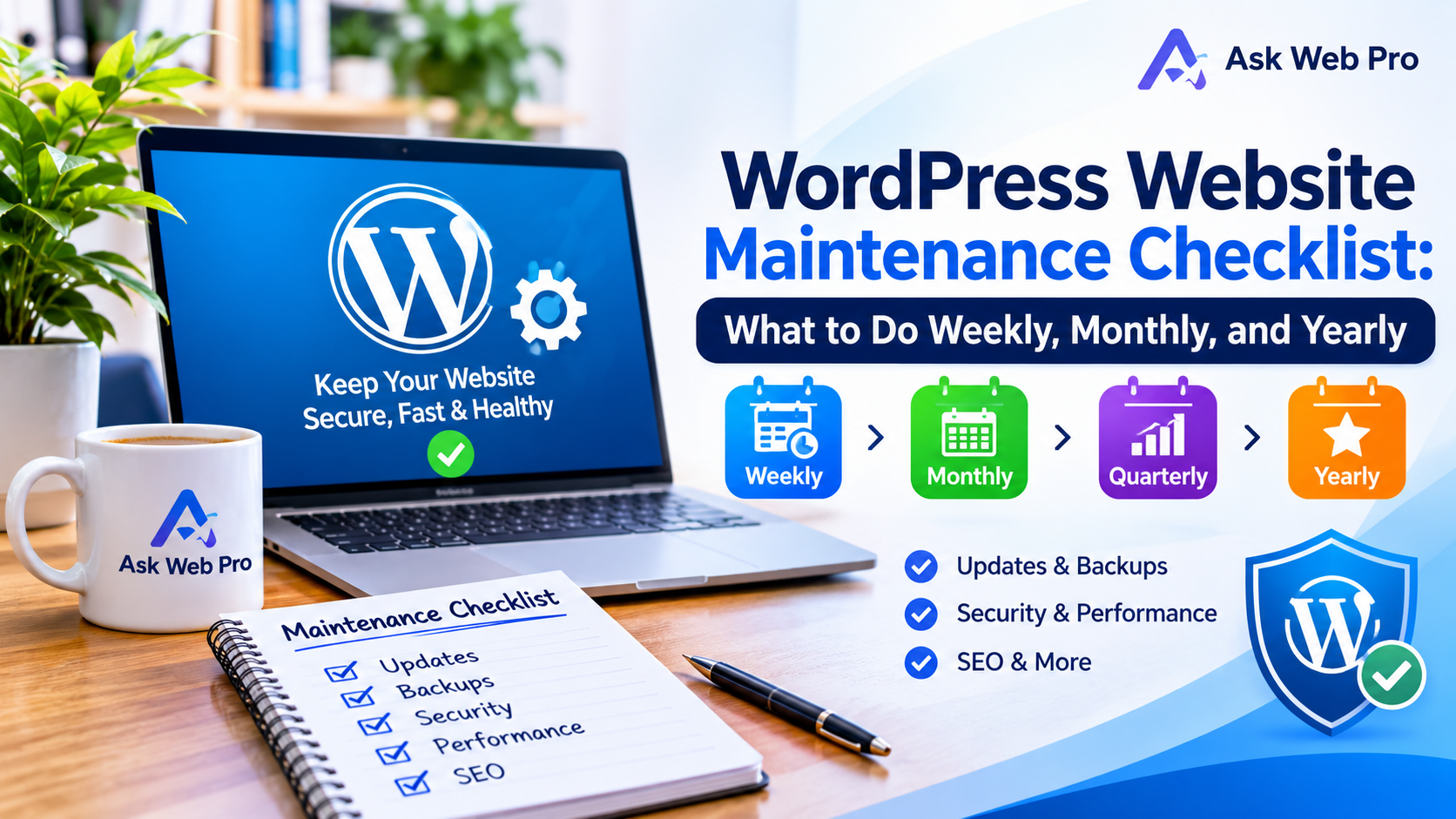
This WordPress website maintenance checklist breaks the work into weekly, monthly, quarterly, and yearly tasks. It also covers security, backups, performance, SEO, and situations where professional help makes sense.
Why WordPress Website Maintenance Matters
A WordPress website depends on several parts working together. WordPress itself, plugins, themes, hosting, forms, integrations, and other services can all affect how your website works.
Regular maintenance helps you find problems before they become bigger issues.
For example, a contact form may stop sending emails after an update. A plugin may become outdated or unnecessary. A page may still show an old phone number. At the same time, a large image or unnecessary script may slow down an important page.
Maintenance does not mean changing your website every week. Instead, it means checking that important parts still work as expected.
For this reason, a simple WordPress maintenance checklist can help you stay organized and avoid missing routine tasks.
Weekly WordPress Maintenance Checklist
Weekly checks do not need to take a lot of time. However, they can help you catch problems early.
Check That Your Website Is Working Properly
Start by visiting your website as a normal visitor would.
First, check the homepage and main navigation. Then, open important service or product pages. Also check pages that generate leads or sales.
Look for:
- Pages that fail to load
- Broken navigation
- Missing images
- Unexpected layout changes
- Buttons that do not work
- Error messages
- Mobile layout problems
If you find a problem, investigate it before it affects more visitors.
Test Your Contact Forms and Important User Actions
A website can look normal while a contact form has stopped working.
Therefore, test your main forms regularly. Depending on your website, these may include:
- Contact forms
- Quote requests
- Appointment bookings
- Newsletter signups
- Account registration
- Checkout
- Payment-related functions
Submit a test form and confirm that the message reaches the correct destination. Also check whether the visitor receives the expected confirmation.
Confirm That Backups Are Running
Backups give you a way to recover your website if something goes wrong.
Check that your backup system is running and that recent backups exist. Also review where the backups are stored and how long they remain available.
Most importantly, make sure you understand how to restore a backup. A backup that you cannot access or restore will not help much during an emergency.
Check for Security or Website Alerts
Keep an eye on anything unusual.
For example, watch for:
- Unexpected login notifications
- Unknown user accounts
- Security warnings
- Suspicious redirects
- Unexpected content changes
- Hosting alerts
- SSL notifications
If something looks unusual, do not ignore it. A quick check can help you find a problem before it becomes more serious.
Monthly WordPress Maintenance Checklist
Monthly maintenance goes a little deeper. In addition to your weekly checks, review the technical health of the website.
Update WordPress, Plugins, and Themes
WordPress websites use the WordPress core, plugins, and themes to provide their features.
Check for available updates regularly. Before making important updates, make sure you have a recent backup.
After an update, test the parts of the website that matter most.
For example, check:
- Forms
- Navigation
- Ecommerce features
- Booking systems
- Custom features
- Third-party integrations
Do not assume everything works correctly just because the update finished successfully.
Review Your WordPress Users and Permissions
Review the user accounts on your website from time to time.
Remove accounts that you no longer need. Also make sure each user has the correct role.
In particular, avoid giving administrator access to users who do not need it. Limiting unnecessary access can reduce security risks.
Check Website Speed and Performance
Website performance can change over time.
New plugins, larger images, tracking tools, scripts, and third-party services can affect loading speed. As a result, a website that once felt fast may become slower later.
Check important pages on both desktop and mobile devices.
Look for:
- Large images
- Unnecessary plugins
- Excessive scripts
- Slow page sections
- Layout problems
- Heavy third-party tools
Use performance testing to find useful improvements. However, do not focus only on achieving a perfect score.
Check for Broken Links and Missing Pages
Broken links create a poor experience for visitors.
Review important internal links and look for missing pages. If you moved a page to a new URL, consider whether you need a redirect.
Also check:
- Main navigation
- Service pages
- Product pages
- Popular blog posts
- Important CTA links
A simple link review can prevent visitors from reaching unnecessary dead ends.
Review Google Search Console and Website SEO
SEO maintenance involves more than adding keywords.
Review Google Search Console regularly for:
- Indexing problems
- Search performance
- Important search queries
- Sitemap status
- Changes in indexed pages
- Search visibility issues
Also check your important pages to make sure they remain accessible and that important SEO settings have not changed accidentally.
Quarterly WordPress Maintenance Tasks
Quarterly reviews give you time to look beyond routine updates.
Test Your Backup and Recovery Process
Do not only check whether backups exist. Review the complete backup process.
Check:
- Backup frequency
- Storage location
- Retention period
- Files included
- Database included
- Restoration process
For business-critical websites, consider testing recovery in a suitable environment.
This extra step can show whether your backup plan will actually work when you need it.
Review Plugins and Themes You Actually Use
Over time, WordPress websites can collect plugins and themes that are no longer needed.
Review each one and ask:
- Do I still use this plugin?
- Does another plugin provide the same feature?
- Do I still need this feature?
- Does the plugin receive updates?
- Does the website work correctly without it?
Remove unnecessary plugins or themes only after confirming that the website does not depend on them.
Review Your Website Content
Business information can change throughout the year.
Therefore, review:
- Services
- Prices
- Contact details
- Team information
- Promotions
- Images
- Links
- Business hours
Make sure visitors see current and accurate information.
Review Important Pages and Conversion Paths
Think about the journey you want visitors to take.
For example:
Homepage → Service/Product → CTA → Contact/Checkout
Now ask yourself:
- Can visitors find important services easily?
- Is the next step clear?
- Are the calls to action relevant?
- Do forms work?
- Is there unnecessary friction?
- Does the journey work well on mobile?
Small improvements to these paths can make a website easier to use.
Yearly WordPress Website Maintenance
Once a year, take a broader look at your website and business needs.
Review Your Hosting and Domain Setup
Review your:
- Domain renewal
- Hosting plan
- Storage usage
- Server resources
- SSL certificate
- Business email
- Backup setup
As your website grows, your hosting needs may change as well.
Review Your Website Design and User Experience
You do not need to redesign your website every year.
Instead, ask whether the current design still represents the business well.
Check:
- Overall appearance
- Navigation
- Mobile experience
- Typography
- Calls to action
- Content findability
- Outdated design elements
In many cases, focused improvements can provide more value than a complete redesign.
Review Your Business Information
Take another look at important business details.
Check your:
- Business name
- Email address
- Phone number
- Address
- Opening hours
- Services
- Team information
- Social media links
Keeping this information accurate helps visitors trust your website.
Review Your Website Goals
Your website should support your current business goals.
Ask:
- Does the website generate the inquiries you want?
- Which pages perform well?
- Which services need more attention?
- Are visitors reaching your contact or booking pages?
- Has your target audience changed?
- What should the website achieve next year?
These questions can help you decide which improvements deserve priority.
WordPress Security Maintenance
Security should remain part of your regular WordPress maintenance routine.
Keep WordPress and Extensions Updated
Keep WordPress, themes, and plugins updated as part of a regular maintenance process.
Before major changes, create a recent backup. Then, after updating, test important website functions.
This simple process can help you find compatibility problems quickly.
Use Strong Login Security
Use strong and unique passwords for your WordPress accounts.
Also review user roles regularly and remove unnecessary administrator access.
Where appropriate, enable two-factor authentication to add another layer of login protection.
Monitor for Unexpected Changes
Pay attention to anything you did not expect to see.
For example:
- Unknown users
- Unexpected posts or pages
- Suspicious redirects
- Changed settings
- Unfamiliar files
- Strange website behavior
If you notice something unusual, investigate it rather than assuming it will fix itself.
Maintain Reliable Backups
Security measures can reduce risk, but no website is completely free from risk.
That is why backups still matter.
Choose a backup frequency based on how often your website changes and how important the stored data is.
An ecommerce website, for example, may need more frequent backups than a simple website that rarely changes.
How to Maintain WordPress Website Performance
Good performance requires ongoing attention.
Optimize Images
Use suitable image dimensions and compress images before uploading them when possible.
Avoid uploading extremely large files when a smaller version can provide the same visual quality.
Also use descriptive alt text for meaningful images.
Keep Plugins and Features Under Control
Review your plugins regularly.
Remove unnecessary functionality and avoid using multiple plugins that perform the same job.
At the same time, do not remove a plugin simply because you want a smaller plugin count. First confirm that the website no longer needs it.
Review Fonts, Scripts, and Third-Party Tools
Fonts, analytics, ads, chat tools, tracking scripts, and other external services can affect performance.
Review these resources from time to time.
If a tool is no longer useful, remove it. If you still need it, consider whether you can load or configure it more efficiently.
Test Mobile Performance
Many visitors use mobile devices, so mobile testing should remain part of your maintenance routine.
Check:
- Page loading
- Navigation
- Buttons
- Forms
- Images
- Text readability
- Layout shifts
- Touch interactions
Do not rely only on desktop testing.
What Happens If You Don’t Maintain Your WordPress Website?
Skipping maintenance does not mean your website will immediately fail.
However, small problems can build up over time.
For example, you may eventually face:
- Outdated content
- Broken forms
- Broken links
- Plugin compatibility problems
- Security issues
- Performance problems
- Difficult recovery
- Outdated business information
- SEO problems
Regular maintenance helps you find these issues while they are still manageable.
Instead of waiting for something to break, routine checks give you a chance to fix problems early.
DIY WordPress Maintenance vs Hiring a Professional
You can handle many basic maintenance tasks yourself. However, some websites need more technical knowledge and regular attention.
When DIY Maintenance Makes Sense
DIY maintenance can work well when your website:
- Has a simple structure
- Uses a small number of plugins
- Has basic functionality
- Does not change often
- Is not business-critical
- You have enough time to maintain it
You should also feel comfortable handling updates, backups, troubleshooting, and basic WordPress settings.
When Professional WordPress Maintenance Makes Sense
Professional support can make more sense when your website includes:
- Ecommerce
- Membership features
- Custom functionality
- Multiple integrations
- Important business forms
- Recurring technical problems
- A large amount of content
It can also help when you simply do not have enough time to manage the website yourself.
What a Professional Maintenance Service Can Include
A professional WordPress maintenance service may include:
- WordPress updates
- Plugin and theme updates
- Backups
- Security checks
- Performance reviews
- Bug fixes
- Content updates
- Broken-link checks
- Troubleshooting
- Website monitoring
The exact service depends on the website and its needs.
Complete WordPress Website Maintenance Checklist
Use the following checklist as a simple routine for your website.
Weekly Checklist
- Website loads correctly
- Contact forms work
- Important buttons work
- Recent backup exists
- No obvious security warnings
- Key pages work on mobile
Monthly Checklist
- WordPress is updated
- Plugins are reviewed and updated
- Theme is reviewed and updated
- Users and permissions are checked
- Website performance is reviewed
- Important links are checked
- Google Search Console is reviewed
Quarterly Checklist
- Backup and recovery process is reviewed
- Unused plugins and themes are reviewed
- Website content is checked
- Important pages are reviewed
- Conversion paths are tested
- SEO issues are checked
Yearly Checklist
- Domain and hosting are reviewed
- SSL is checked
- Business information is updated
- Website design is reviewed
- Mobile UX is reviewed
- Website goals are reviewed
- Future improvements are planned
Frequently Asked Questions
How often should a WordPress website be maintained?
There is no single schedule for every website.
As a general routine, perform basic checks weekly. Then review updates, performance, and SEO monthly. Finally, perform deeper reviews every quarter and every year.
Complex websites may need more frequent checks.
What is included in WordPress website maintenance?
WordPress maintenance can include updates, backups, security checks, performance reviews, broken-link checks, form testing, content updates, and troubleshooting.
The exact tasks depend on the type and complexity of the website.
Do I need to update WordPress plugins every month?
You should monitor plugin updates regularly, but you do not need to follow a fixed monthly schedule.
When an update becomes available, check whether you need it, create a recent backup when appropriate, and test important website functions after the update.
How often should I back up my WordPress website?
Your backup schedule should match how often your website changes.
For example, an ecommerce website with frequent orders and content changes may need more frequent backups. A simple brochure website that rarely changes may need them less often.
The important point is to have recent backups and know how to restore them.
Is WordPress maintenance necessary for a small business website?
Yes, although the maintenance routine may be relatively simple.
A small business website still needs regular updates, backups, security checks, form testing, performance reviews, and accurate business information.
Can I maintain my WordPress website myself?
Yes. Many small websites can handle basic maintenance without professional help.
However, ecommerce websites, custom WordPress websites, membership sites, and websites with complex integrations may require more technical knowledge.
How much does WordPress website maintenance cost?
There is no universal maintenance price.
The cost can depend on:
- Website size
- Number of plugins
- Ecommerce functionality
- Custom development
- Update frequency
- Security requirements
- Performance needs
- Content support
- Troubleshooting requirements
If you are comparing website-related costs, you can also read our guide on how much a WordPress website costs.
A WordPress website does not need constant changes. Instead, it needs consistent maintenance that matches its size, complexity, and importance to your business.
Start with the basics. Check that the website works, keep backups available, apply updates carefully, monitor security, review performance, and keep important information accurate.
Then, as your website grows, you may need more detailed maintenance for ecommerce, custom functionality, integrations, SEO, or performance.
The goal is simple: find small problems early, keep your website useful for visitors, and make sure it continues to support your business.